


SCHOOLPASS
This year we are partnering with SchoolPass for our TCS app. Please note that SchoolPass pulls data directly from FACTS so make sure that your information is up-to-date on the FACTS Family Portal.
Take a look at the table of contents below to view the different ways you will use SchoolPass during the school year.
HOW TO DOWNLOAD SCHOOL PASS APP
FOLLOW THE INSTRUCTIONS CONTAINED IN THIS VIDEO:
REPORTING AN ABSENCE
When your child(ren) will not be attending school:
1. Click on the “+” on the bottom navigation bar to access the Add Changes menu.
Click on the Absent button.

When your child(ren) will not be attending school:
1. Click on the “+” on the bottom navigation bar to access the Add Changes menu.
Click on the Absent button.

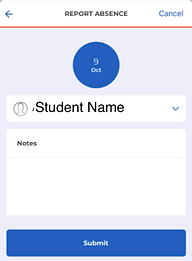
3. If you have one TCS student: Type any additional notes and hit Submit.
If you have multiple TCS students, click on the “∨” to view all students.

4. Additionally, for families with multiple students: Select each student you are reporting an absence for (green arrow will appear).
Click on Choose Students, then add any notes, and click on Submit.
4. Additionally, for families with multiple students: Select each student you are reporting an absence for (green arrow will appear).
Click on Choose Students, then add any notes, and click on Submit.
REPORTING A LATE ARRIVAL
When your child(ren) will be coming to school late:
1. Click on the “+” on the bottom navigation bar to access the Add Changes menu.
Click on the Late Arrival button.
2. Select the day(s) on the calendar that your child(ren) will be late.
Click on Choose date.
3. Click on Drop Off Time and scroll down and click on the time your child will be arriving. Times are listed in 15-minute intervals.
If you have one TCS student, type any additional notes and hit Submit.
4. For families with multiple students: Select each student you are reporting a late arrival for (green arrow will appear).
Click on Choose Students, then add any notes, and hit Submit.
REPORTING AN EARLY PICKUP
When your child(ren) will be leaving school early:
1. Click on the “+” on the bottom navigation bar to access the Add Changes menu.
Click on the Early Pickup button.
2. Select the day(s) on the calendar that your child(ren) will be leaving early.
Click on Choose date.
3. Click on Pick Up Time and scroll down and click on the time your child will be leaving. Times are listed in 15-minute intervals.
If your child will be returning to school that same day, move the slider to the right.
If you have one TCS student, type any additional notes and hit Submit.
4. For families with multiple students: Select each student you are reporting an early dismissal for (green arrow will appear).
Click on Choose Students, then add any notes, and hit Submit.
MOVING TO ANOTHER CARPOOL
The arrival and dismissal defaults for all students will be set to their own family’s carpool. If your child is arriving or leaving with another TCS student/parent, you will need to move your child over to another carpool.
1. Click on the “+” on the bottom navigation bar to access the Add Changes menu.
Click on the Carpool button.
2. Select the day(s) on the calendar that your child(ren) will be arriving or leaving with another The Country School family.
(Note: if this is an ongoing carpool, switch the view to Recurring)
Click on Choose date.
3. Click Select Carpool

4. In the “Choose Carpool” menu, type in the last name of the student or parent your child will be leaving with.
Click on the correct name to select the carpool.

5. Click on Type to indicate whether this move is for Arrival or Dismissal carpool.
6. If you have one TCS student, type any additional notes and hit Submit.
7. If you have more than one TCS student, click on the “∨” to view all students.
Select each student you are moving to this carpool (green arrow will appear).
Click on Choose Students, then add any notes, and click on Submit.

ADDING/DELETING AUTHORIZED DRIVERS
If anyone other than a child’s parent/legal guardian is going to pick them up at school, that information needs to be entered in SchoolPass.
IMPORTANT- If another TCS parent will be picking up your child(ren), please DO NOT enter them as a driver on your account. (Use the Moving to Another Carpool procedure instead.)
Note: Only one parent has access to the Add Driver button. If you log in and don’t have access on your account, you can ask the other parent/guardian on your account to add this information, or you can email mheilman@country-school.org and we will happily add the driver in for you manually.
To add non-TCS parent drivers (i.e. nanny, babysitter, grandparent, etc.) to your account:
1. Click on Drivers on the bottom right hand side of the SchoolPass app.

2. All drivers included on your account will display.
To add a new driver, click the blue Add Driver button.

3. Fill in all required contact fields (*) and click Add Driver.
a) In order to log into SchoolPass, the driver would need to follow the reset password instructions.
b ) If you enter the email address for a driver and move the slider to Opt-In for email, this driver will receive an email notification any time a change is made to your child(ren)’s SchoolPass account.

To delete non-TCS parent drivers on your account:
1. Click on Drivers on the bottom right hand side of the SchoolPass app.

2. Click on the name of the driver you wish to delete.

3. Click on the red Delete Driver button.

4. Click the red Yes button to confirm you want this driver deleted from your account.
